
How to Reduce iPhone Data Use Without Restricting Every App
Low Data Mode cuts several kinds of activity at once. Individual app controls offer a more selective approach, with different tradeoffs for updates, streaming and downloads.

Photo: Source: www.engadget.com
Choose between broad savings and app-by-app control
If your iPhone has a limited data allowance, Low Data Mode offers a broad way to reduce consumption. For a narrower approach, individual app controls let you limit background updates or block a specific app’s cellular access.
Apple also recommends considering Low Data Mode when data speeds are slow. Engadget’s data-saving guide highlights international travel and hotspot use as reasons to pay closer attention to consumption.
Low Data Mode trades automatic activity for lower use
Apple says Low Data Mode disables Background App Refresh, which lets apps update content while you are not using them. It also limits other background network activity, reduces streaming quality, and turns off automatic downloads and backups.
The effects reach familiar services: iCloud Photos updates pause, and Music’s high-quality streaming turns off. Podcasts limits feed updates and downloads episodes only over Wi-Fi, while FaceTime adjusts the amount of video data it sends.
Those changes make the choice practical: consider whether reducing data use matters more than automatic photo updates, backups or streaming quality. Apple cautions that apps reduce their data use in different ways.
Set limits for the connection or app
Apple Support says Low Data Mode works with iOS 13 and later. You can enable it separately for cellular connections and individual Wi-Fi networks, so each connection can have its own setting.
The supplied guides use different menu labels: Engadget uses Cellular, while Apple’s instructions use Mobile Data. Apple gives the path Settings > Mobile Data > Mobile Data Options to enable Low Data Mode, with an additional Data Mode step for 5G. Users with two SIMs select the relevant phone number; Apple says settings can vary by network provider.
For selective restrictions, start with Settings > Cellular. Engadget says this page shows each app’s usage for the Current Period, a counter that resets manually. Do not assume the displayed total matches your monthly billing period.
Disabling an app’s cellular access stops its mobile data use both while you use it and in the background, Engadget says. To limit only background refresh, the guide recommends Settings > General > Background App Refresh, where you can choose Wi-Fi or disable refresh for individual apps.
Prepare offline content before you need it
Supported maps, videos, music and podcasts can also be downloaded for offline use. Engadget recommends checking available storage and any expiration dates or download limits before relying on that content away from a connection.
Share this story
Related Stories

Amazon opens TorchNeuron beta to ease PyTorch use on Trainium
Amazon says developers can move PyTorch applications to Trainium with a basic configuration change. A separate open-source release is planned for Tuesday.

Tesla Sets 2028 Roadster Production Target; Final Prices Still Unannounced
Tesla lists reservation deposits of $50,000 for Performance and $250,000 for Thrust, but its production target does not establish when customers will receive their cars.

Apple sets iPhone Duo preorders for October 16
The foldable iPhone Duo pairs an outer screen with a larger inner display for multitasking. Apple says its Siri AI features are rolling out in an…
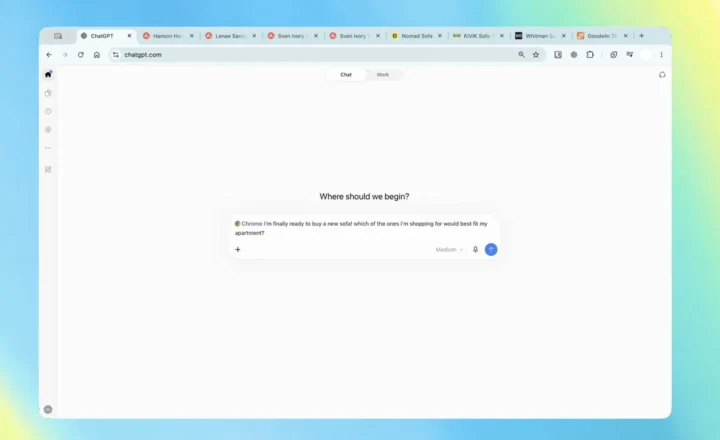
ChatGPT Chrome Extension Adds Open-Tab Answers and Browser Tasks
The update lets users ask questions about open pages and request browser actions through ChatGPT Work, according to supplied reporting.
See an error? Request a correction.