
PC Gaming Settings That May Help Your Existing Graphics Card
Engadget and MSI recommend lowering demanding settings and using supported upscaling. Frame generation comes with a separate tradeoff: higher displayed frame rates can also mean slower responses to player input.
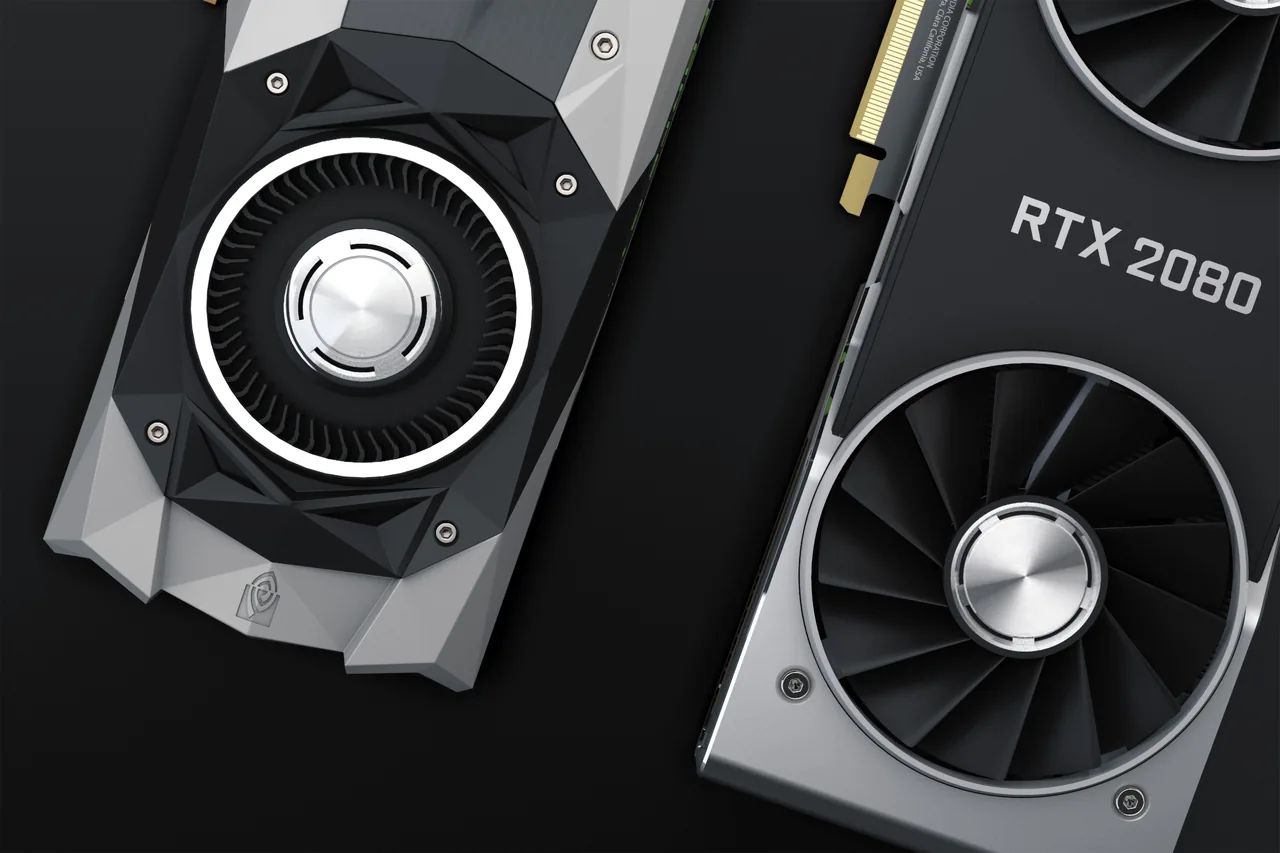
Photo: Nana Dua / Pexels
Start with the settings that strain your graphics card
PC gamers whose graphics cards struggle can try lowering demanding settings and enabling supported upscaling, according to guides from Engadget and MSI. Their advice offers practical ways to adjust performance, with tradeoffs in image quality and responsiveness.
Engadget recommends trying Balanced or Performance graphics presets when a graphics processing unit, or GPU, struggles. These settings trade some visual detail for a higher frame rate. MSI similarly recommends reducing shadow quality and rendering resolution—the level of detail at which the game draws its images.
Both guides flag ray tracing, a graphics setting for lighting effects, as demanding. Engadget recommends turning it off on budget graphics cards.
Texture quality deserves a separate check. MSI warns that texture settings exceeding available video memory, or VRAM, can cause stuttering and pop-in, where visual details appear suddenly. Lowering that setting may address a memory limit rather than simply reduce visual quality.
Upscaling depends on your hardware and game
Upscaling draws a game at a lower internal resolution, then reconstructs a higher-resolution output. Both guides recommend supported upscaling to help performance. It gives players another way to reduce the work involved in drawing the game.
Availability depends on both the graphics card and the game, MSI says. Its guide lists RTX cards with Tensor Cores for NVIDIA’s Deep Learning Super Sampling, or DLSS, upscaling technology. MSI also cautions that newer versions of AMD’s FidelityFX Super Resolution, or FSR, may require newer Radeon cards.
Higher frame rates can come with slower input response
Frame generation can raise displayed frames per second, or FPS, while adding input latency—the delay between a player’s action and the game’s response. Engadget reports that tradeoff in its experience with DLSS 4.5 Multi Frame Generation. MSI also warns about increased latency.
That makes the FPS counter only part of the picture: a higher number can come with less responsive controls. MSI recommends a base frame rate around 60 FPS before enabling frame generation and advises against using it in competitive games.
Hardware limits apply here, too. MSI lists RTX 40-series or newer cards for NVIDIA Frame Generation and RTX 50-series cards for Multi Frame Generation, with game support also required.
Maintenance helps address a different performance limit
Engadget recommends updating GPU drivers and closing background applications to reduce resources spent outside the game. It also explains that dust around GPU fans can restrict airflow. A card that reaches its temperature limit may slow its processing speed.
Cleaning addresses that cooling problem, but Engadget explicitly says it does not guarantee an FPS improvement. The useful distinction is between easing demanding game settings, reducing memory pressure and addressing heat: each targets a different potential limit.
Share this story
Related Stories
Amazon opens TorchNeuron beta to ease PyTorch use on Trainium
Amazon says developers can move PyTorch applications to Trainium with a basic configuration change. A separate open-source release is planned for Tuesday.

Tesla Sets 2028 Roadster Production Target; Final Prices Still Unannounced
Tesla lists reservation deposits of $50,000 for Performance and $250,000 for Thrust, but its production target does not establish when customers will receive their cars.

Apple sets iPhone Duo preorders for October 16
The foldable iPhone Duo pairs an outer screen with a larger inner display for multitasking. Apple says its Siri AI features are rolling out in an…

ChatGPT Chrome Extension Adds Open-Tab Answers and Browser Tasks
The update lets users ask questions about open pages and request browser actions through ChatGPT Work, according to supplied reporting.
See an error? Request a correction.