
Missing Live Activities on iPhone or CarPlay? Settings to Check
Separate controls govern app updates, Lock Screen access and CarPlay visibility. Checking the setting for the missing display can help narrow the problem.
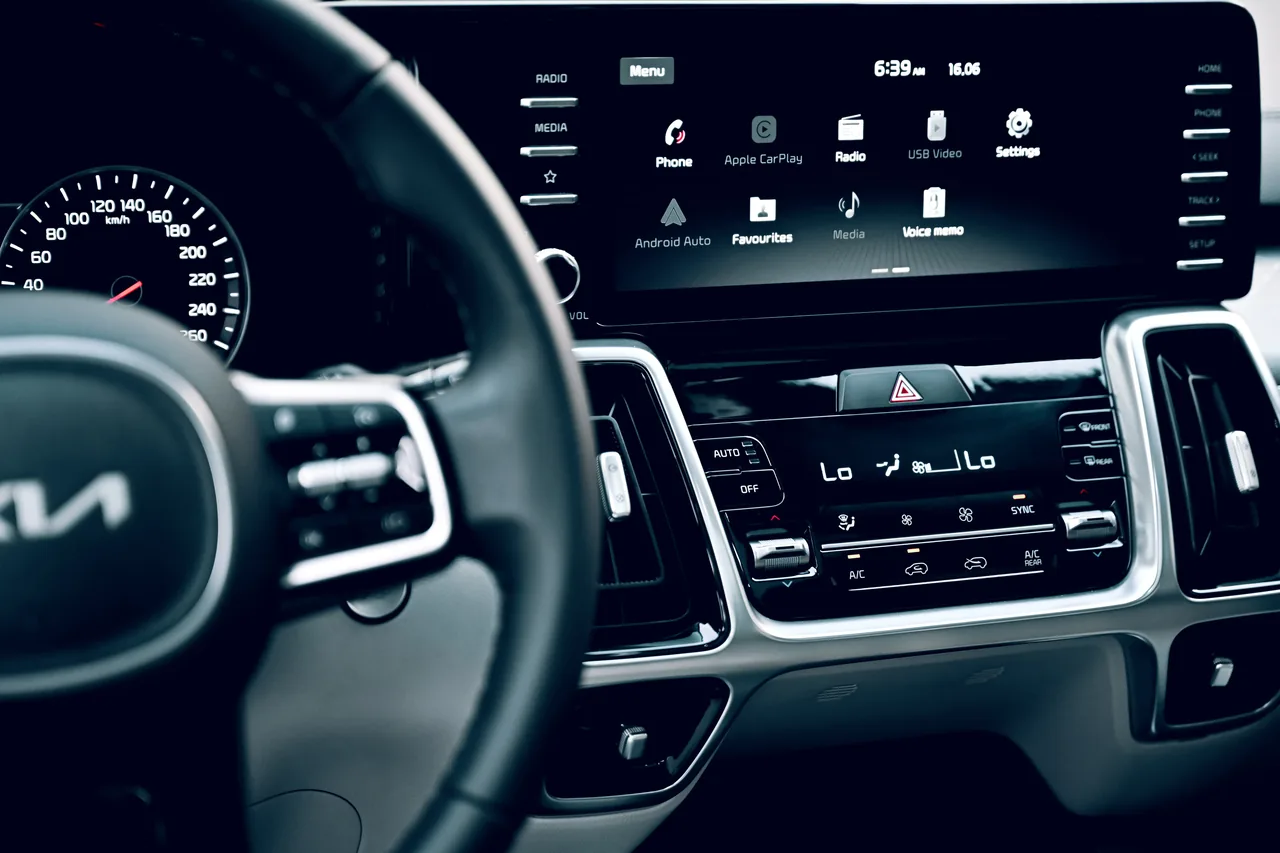
Photo: Jeffrey Paa Kwesi Opare / Pexels
Match the setting to the missing update
Missing Live Activities on iPhone or CarPlay? The setting to check depends on where the update is missing. Engadget’s guidance identifies separate controls for individual apps, the iPhone Lock Screen and CarPlay.
Live Activities keep ongoing information visible, such as a running timer or sports score. According to Engadget, they can appear in the iPhone’s Dynamic Island, reducing the need to reopen the app, or on the Lock Screen.
The supplied guidance does not establish hardware, software or CarPlay compatibility requirements. These instructions therefore do not confirm that every device offers every display mode.
CarPlay updates may appear in a different place
A change in placement can explain where to look. Engadget reports that Live Activities appear automatically on CarPlay Dashboard. When an app fills the screen, the updates appear as notifications at the bottom instead.
CarPlay Dashboard can show navigation directions, sports updates and food-delivery estimates. If updates are missing, Engadget recommends enabling Live Activities in CarPlay Settings and checking Suggestions in CarPlay or Suggestions in Dashboard.
Check the app switch and locked-phone access separately
For a missing app update on iPhone, open Settings > Apps > the relevant app > Live Activities. Engadget says Live Activities should be enabled by default, but recommends checking this switch when updates are absent.
If the problem is visibility while the phone is locked, check the separate Lock Screen control. According to Engadget, the path is Settings > Face ID & Passcode > Allow Access When Locked > Live Activities.
The same controls also help manage unwanted updates. Engadget says users can disable Live Activities for individual apps or turn them off in CarPlay if they become distracting.
Share this story
Related Stories
Amazon opens TorchNeuron beta to ease PyTorch use on Trainium
Amazon says developers can move PyTorch applications to Trainium with a basic configuration change. A separate open-source release is planned for Tuesday.
Tesla Sets 2028 Roadster Production Target; Final Prices Still Unannounced
Tesla lists reservation deposits of $50,000 for Performance and $250,000 for Thrust, but its production target does not establish when customers will receive their cars.
Apple sets iPhone Duo preorders for October 16
The foldable iPhone Duo pairs an outer screen with a larger inner display for multitasking. Apple says its Siri AI features are rolling out in an…
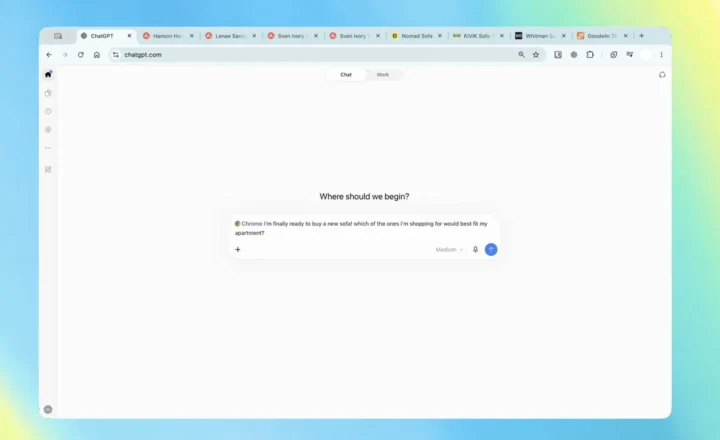
ChatGPT Chrome Extension Adds Open-Tab Answers and Browser Tasks
The update lets users ask questions about open pages and request browser actions through ChatGPT Work, according to supplied reporting.
See an error? Request a correction.